
Next Level #7 · Credits
You build a segment in Marketing Cloud Next. You pick the attributes, check the count, attach it to a campaign and move on.
What you probably didn’t touch: how far back it looks, and how often it runs.
Those two settings decide how much data every single run processes. And unlike a send, a segment keeps running long after the campaign has gone quiet.
So which settings should you check, and how do you cut segment credits without breaking your audiences?
So, let’s have a look.
Segment credits tip in a nutshell
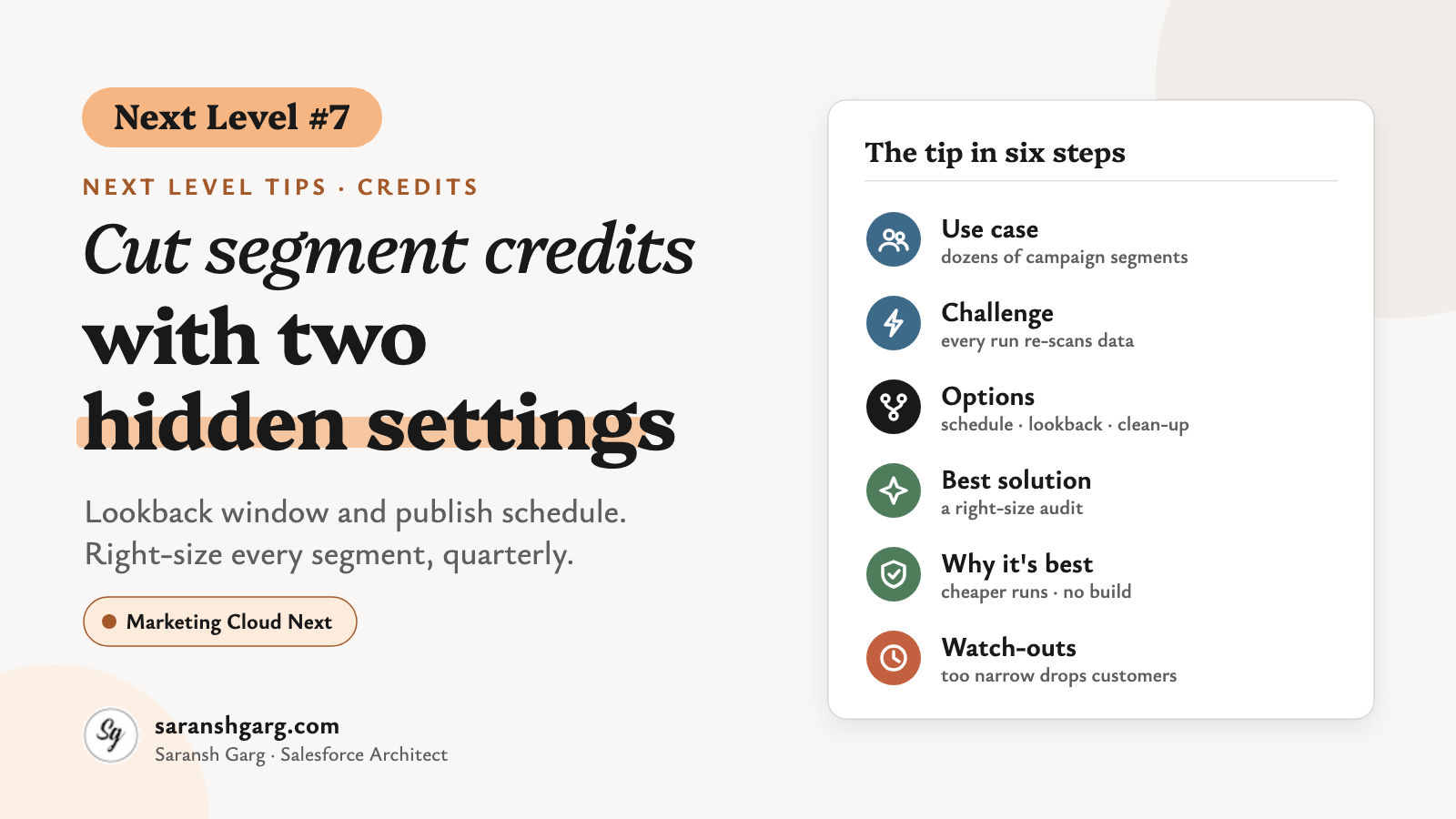
- Use case: a marketing team runs dozens of Data 360 segments behind Marketing Cloud Next campaigns and flows.
- Challenge: each segment re-processes profiles and engagement data on every publish, sized by its lookback window and repeated by its publish schedule.
- Best solution: right-size every segment: stop the unused ones, match the schedule to the send, and match the lookback to the audience logic.
- Watch out for: a lookback that’s too narrow silently drops customers who should qualify.
The use case
Marketing Cloud Next segments are Data 360 segments. Every audience you target from a campaign or flow is evaluated in Data 360, and that evaluation is billed.
Most teams create segments quickly, often by copying an existing one, and segment credits are rarely part of that conversation. Months later the org has dozens of them, all publishing on a daily schedule with whatever lookback they were born with.
Nobody wants to be the person who explains to finance why credits spiked in a month with no new campaigns.
Example scenarios
- A weekly newsletter audience that publishes every day, so six out of seven runs feed nothing.
- A Black Friday segment with a 2-year lookback, still publishing every morning in March.
The challenge
“Segments are just filters. They don’t really cost anything until you send.”
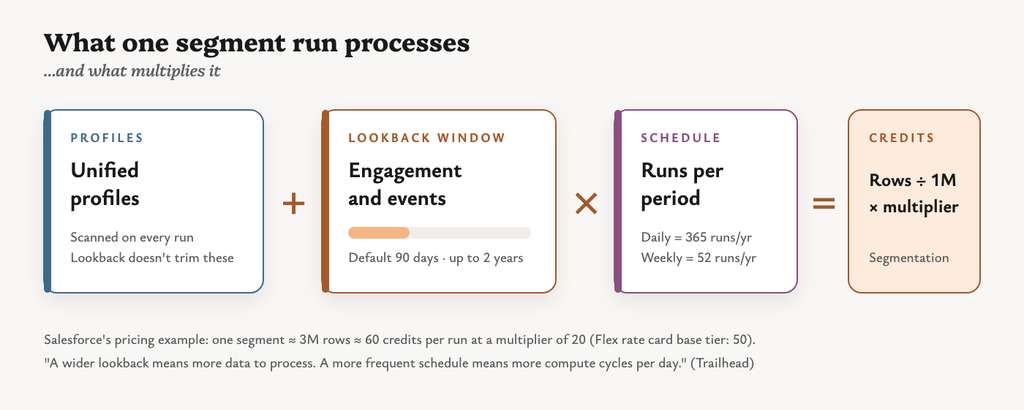
Well… no. Salesforce’s credit consumption module lists Segmentation and Activation as usage types of their own. Credits are calculated as rows processed ÷ 1 million × a multiplier, every time the segment runs.
And the Trailhead unit on lookback and schedules names the two dials directly: “A wider lookback means more data to process. A more frequent schedule means more compute cycles per day.”
The lookback window: it controls how far back Data 360 reads event data (engagement, orders) when evaluating criteria, based on each record’s event timestamp. The default is 90 days, and it can go up to 2 years (or 360 days, depending on org settings).
The publish schedule: standard segments publish on a schedule (daily, weekly or monthly, with intervals such as 12 or 24 hours) or manually with Publish Now.
What it costs: Salesforce’s own marketing pricing example says a single segment scans “all of Evergreen’s unified profiles and relevant engagement data, processing approximately 3 million rows.” At that page’s segmentation multiplier of 20, that’s about 60 credits per run. Daily, that’s about 21,900 credits a year for one segment. The page’s 100 daily segments come to over 2 million credits a year.
On the newer Flex Credits rate card (31 August 2026), segmentation is 50 credits per million rows at the base tier, so the same run uses more credits until volume tiers kick in.
Who notices: usually nobody, until segment credits on the Digital Wallet consumption card look wrong.
Possible solutions to cut segment credits
Option A: do nothing
Accept the default schedule and lookback and budget the segment credits that come with it. It’s simple, but you pay for every unused run, every day.
Option B: reduce the publish schedule
Match each segment’s schedule to how often it’s actually sent. It’s easy and the saving is predictable: a weekly send on a weekly schedule runs 52 times a year instead of 365.
Option C: narrow the lookback window
Set the lookback to the shortest window the audience logic genuinely needs. It cuts the engagement data processed on every run, but it needs care, because it changes who qualifies.
Option D: switch off unused segments
Salesforce’s own advice is to “deactivate projects that aren’t being used”, naming “outdated segments that are still running.” This one is pure saving, but it’s a one-off clean-up unless someone owns it.
Option E: pre-aggregate into a calculated insight
Calculate something like “last engaged date” once in a calculated insight, then segment on it. It can simplify segments, but calculated insights are billed too, and Salesforce doesn’t document how much segment processing this saves.
| Option | Credits saved | Effort | Audience risk | Saving lasts? |
|---|---|---|---|---|
| A. Do nothing | None | None | None | — |
| B. Reduce schedule | High | Low | Low | Yes |
| C. Narrow lookback | Medium (undocumented) | Low | Medium | Yes |
| D. Stop unused | High | Low | None | Only if repeated |
| E. Calculated insight | Unclear | Medium | Low | Yes, with its own cost |
| B + C + D as an audit | Highest | Low | Managed | Yes |
The best solution: a right-size audit for every segment
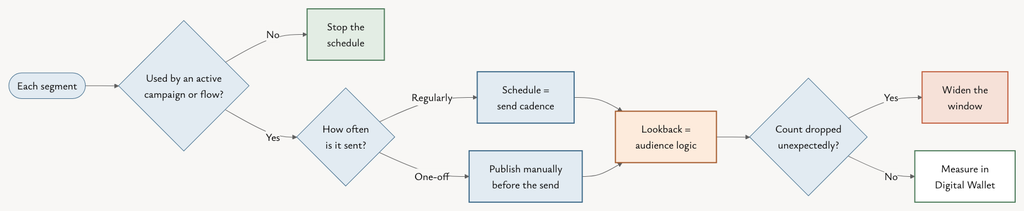
Combine the three cheap levers for segment credits into one checklist, and run it for every new segment and once a quarter for existing ones.
- Is it still used? Check which active campaigns and flows reference the segment. If none do, stop its schedule. Keep the definition if you might reuse it.
- Match the schedule to the send. Weekly sends get weekly schedules. For one-off campaigns, publish manually shortly before the send. The data lags unit says records are typically available 15–30 minutes after a publish completes.
- Match the lookback to the audience logic. Salesforce’s guidance is 7 or 30 days for a flash sale, 90 days for recent activity, and 6 or 12 months for win-back. Where only one criterion needs a short window, narrow it on that container: a container’s narrower range takes precedence for that criterion.
- Check the count before and after. Note the segment population before the change. If it drops more than you expected, the lookback is cutting out real customers.
- Measure it. Compare segment credits (the Segmentation line in Digital Wallet) for the month before and after.
Where: the segment’s publish settings for the schedule. The lookback is set when you create the segment.
Runs: at creation, then quarterly. Put it on the campaign calendar so it isn’t left to memory.
Why this is the best solution
It uses the levers Salesforce names. Lookback and schedule are the two settings the documentation explicitly ties to consumption.
Every future run uses fewer segment credits. A narrower lookback or a lighter schedule reduces every run that follows, not just one.
No build required. These are settings, not a data model change, so a marketer can make them in an afternoon.
It’s reversible. If a count looks wrong, you widen the window or restore the schedule.
If a client asked me tomorrow, I’d start with step 1. In most orgs the cheapest segment run is the one that shouldn’t be happening at all. I’d only reach for calculated insights once the audit is done and a few heavy segments remain.
Considerations and limitations
- Audience accuracy: the lookback only reads records whose event timestamp falls inside the window. Too narrow, and lapsed-but-valuable customers quietly vanish.
- Rapid segments are different: lookback applies only to standard publish. Rapid segments (1- or 4-hour refresh) always use the past 7 days of engagement data, and you can’t switch a segment from standard to rapid after creation.
- Activation is a separate bill: a scheduled segment must also activate to a target, which is billed as Activation. The first publish to a target is always a full refresh.
- Profiles still count: as I read Salesforce’s pricing example, a run scans unified profiles and engagement data. A narrower lookback trims the engagement side, not the profile side.
- Other credits are separate: data graph refreshes and identity resolution are billed separately and have their own schedules.
- Manual publishing relies on people: if a one-off send relies on Publish Now and nobody presses it, the audience is stale. Put the publish on the campaign checklist.
- No documented saving figure: Salesforce says a wider lookback means more data, but doesn’t put a number on it. Measure your own before and after.
This solution isn’t right if… you rely on near-real-time audiences (rapid or real-time segments), or your audience logic genuinely needs years of history. In that case, keep the window and work the schedule harder.
Wrap-up
Segment credits rarely come from one big mistake. They come from a hundred small defaults, repeated every day.
Two settings, checked once a quarter, put you back in control.
If you want the bigger picture on where Data 360 credits go, my post on a Data 360 implementation for global brands walks through the rate card line by line. And if any of your segments sit on federated data, Data Cloud zero copy: the hidden trade-offs explains why each refresh can cost more than you’d expect.
This is Next Level #7. All tips: Next Level Tips. Got a hidden tip of your own? I’d love to hear it.