

You open Setup in Marketing Cloud Next / Agentforce Marketing, type “domain” into Quick Find, and get a small list back.
Authenticated Domains. Authorized Email Domains. Links, with a “Manage Domains” section inside it.
Three settings that sound alike but do three quite different jobs.
If you’re coming from Marketing Cloud Engagement, it’s tempting to file all of this under “the SAP bit” and hand it to IT. But Marketing Cloud Next domains don’t map one-to-one to what we had before. Get them wrong and the result isn’t a warning, it’s emails that don’t send, replies that vanish, or links that carry somebody else’s brand.
Salesforce covers this across Help articles, a knowledge article and the Marketing Cloud Next Email Sending Essentials Trailhead module. Read together, they’re pretty clear about what each domain is for.
And then there’s Reply Mail Management, which quietly decides what happens when a customer hits “Reply”.
So, let’s have a look.
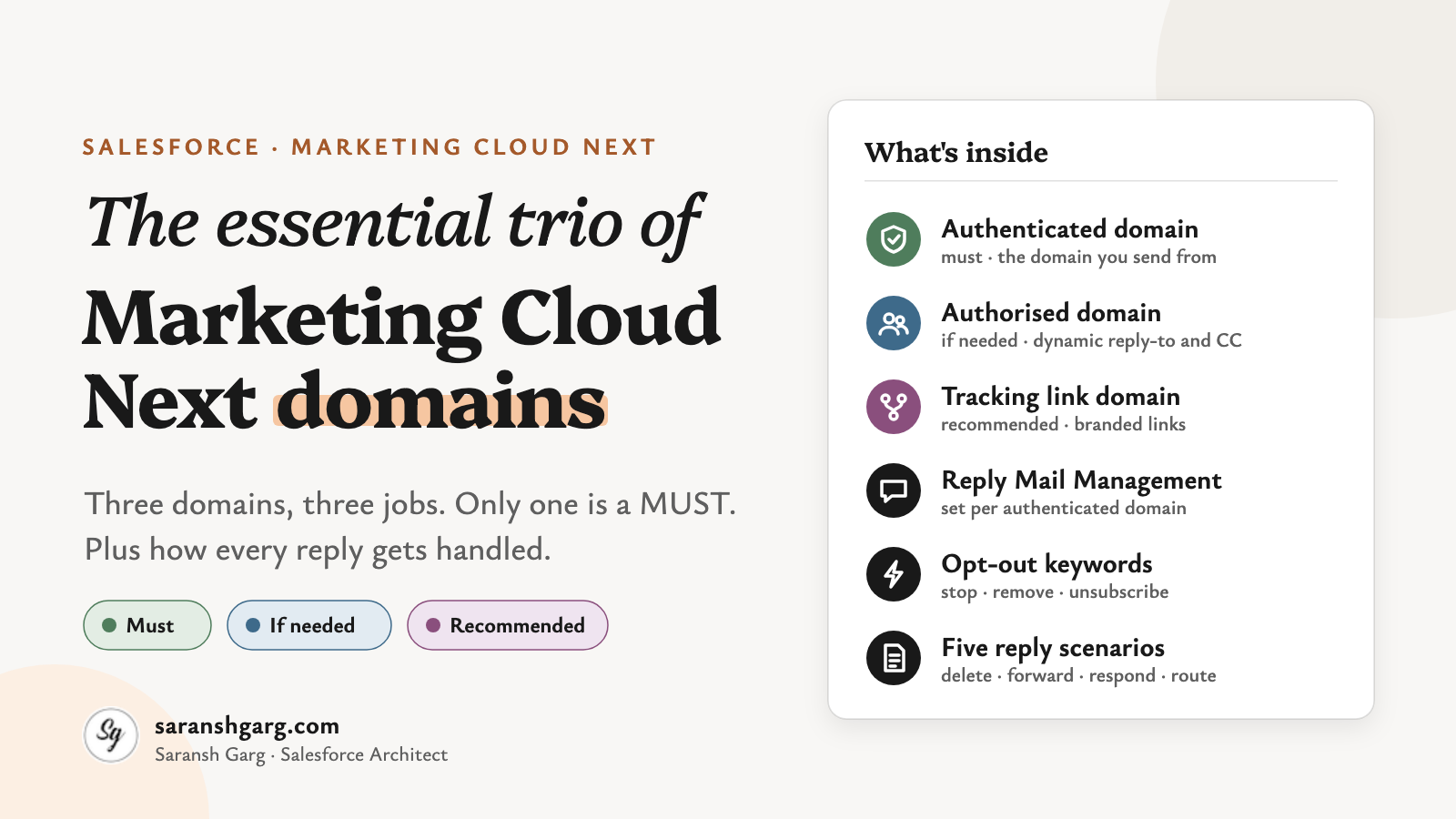
Marketing Cloud Next domains in a nutshell
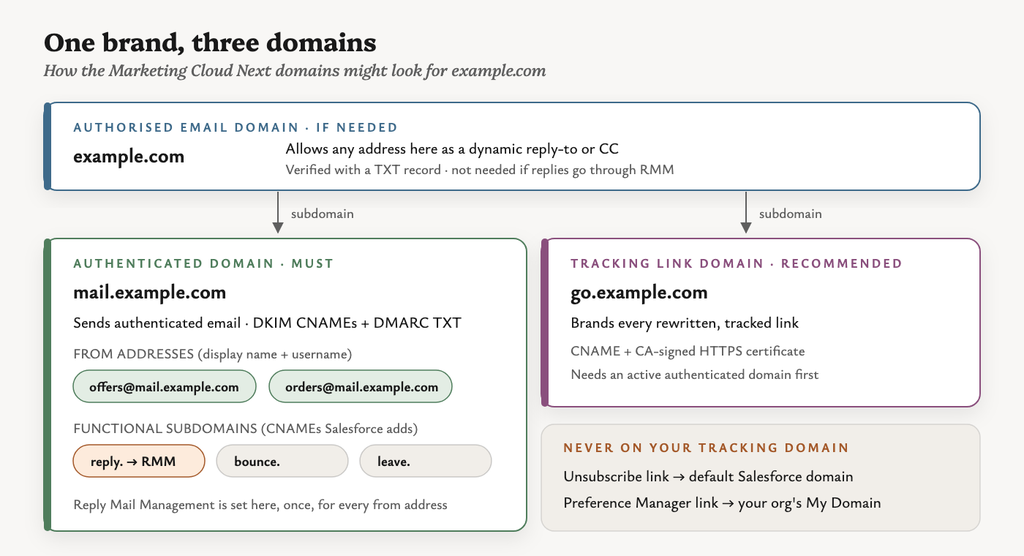
- Authenticated domain — MUST. The subdomain you send from. Without one, there is no authenticated email sending at all.
- Authorised email domain — CONDITIONAL. Only needed for dynamic reply-to addresses, or for CC (including treating internal staff as internal recipients).
- Email tracking link domain (branded domain) — RECOMMENDED. Puts your brand on tracked links instead of a default Salesforce domain. Optional, but I’d set one up on every implementation.
- Reply Mail Management (RMM) — configured on the authenticated domain. It filters auto-replies, processes opt-out keywords and forwards real replies to an inbox.

First, what do we mean by “domain” here?
A few terms that every conversation about Marketing Cloud Next domains leans on:
- Root domain — your organisation’s main domain, e.g.
example.com. - Sending subdomain — a subdomain used only for marketing email, e.g.
mail.example.com. This becomes your authenticated domain. - From address — a display name plus a username (the local part) on an authenticated domain, e.g. Example Offers
<offers@mail.example.com>. - Functional subdomains — prefixes Salesforce adds to your sending subdomain to route inbound mail:
reply.,bounce.andleave.(unsubscribe handling). Each needs a CNAME record pointing at Salesforce-managed inbound servers. - Verification vs activation — your IT team publishes the DNS records, Salesforce checks them, and only then does the domain’s status become Active.
Keep that last one in mind. Quite a lot in Marketing Cloud Next only appears once the domain is active.
Authenticated domains: the one you can’t skip
If you’ve set up Sender Authentication Package (SAP) in Marketing Cloud Engagement, this will feel familiar. Familiar, but not the same.
An authenticated domain proves to inbox providers that your organisation is the legitimate sender. Salesforce says it plainly in the sending domain setup article: “To send authenticated emails, you must set up and verify your sending domains.”
Where: Setup → Authenticated Domains → Add Domain.
What you enter: the subdomain (e.g. mail.example.com), then a display name and username for the first from address — Salesforce creates that initial from address alongside the domain.
DNS records Salesforce generates (per the CNAME records article):
- three DKIM CNAMEs (
s1-,s2-,s3-e360-…._domainkey) - CNAMEs for the
reply.,bounce.andleave.functional subdomains - a DMARC TXT record at
_dmarc
Activation: after IT publishes the records, tick “I completed my changes with my DNS provider” and click Activate my Domain. Propagation can take up to 48 hours.
More from addresses: Setup → Authenticated From Addresses → Add From Addresses. Each one becomes available for sends that use that domain.
Required: Yes. This is the only one of the three that’s a hard MUST.
Watch-outs:
- Salesforce’s sample DMARC record uses
p=reject. The documentation warns that a reject policy at the root domain can affect all corporate email from that domain, so involve whoever owns your email security before publishing it. - Use a dedicated subdomain. Don’t share it with Marketing Cloud Engagement or another platform.
That’s a pretty big deal: no authenticated domain, no sending, and none of the other Marketing Cloud Next domains in this post work either.
Example scenarios
- A retailer authenticates
mail.example.comand adds three from addresses on it: Offers, Orders and the Style Team. - A group with two brands authenticates
mail.brand-a.comandmail.brand-b.comseparately, so each brand keeps its own sending reputation.
Authorised email domains: only when you need them
Now this one is particularly interesting, because it’s the most misunderstood of the Marketing Cloud Next domains.
“Authorised domains are just authenticated domains with a different name.”
Well… no. Salesforce’s authorised email domains article goes out of its way to say “authorized email domains aren’t the same as authenticated domains.”
- Authenticated domains are the ones you send from.
- Authorised domains are the ones you allow Marketing Cloud Next to use for CC or dynamic reply-to addresses.
And they don’t need to match. Salesforce’s own example sends from mail.example.com and authorises example.com. Once verified, any address on the authorised domain can be used as a dynamic reply-to or CC address.
Where: Setup → Authorized Email Domains (verified with a TXT record).
Used by:
- Dynamic reply-to — the reply address is resolved per recipient, e.g. their account manager.
- CC — under Unified Messaging → Send Settings. The CC article notes that “if authorized domains aren’t set, then all recipients are considered as external recipients”, so your own staff on CC are treated as external.
Required: Only for the features above. Salesforce states: “If you use Reply Mail Management (RMM), you don’t need to configure an authorized email domain. RMM generates a system-managed reply address.”
Watch-out: a dynamic reply-to sends replies straight to your own mail server. As I read it, that means they never reach Salesforce’s reply. subdomain, so RMM’s filtering and opt-out keyword handling can’t touch them.
Example scenarios
- A B2B team wants replies to go straight to each contact’s account manager at
@example.com, so they authoriseexample.comand use a dynamic reply-to. - A bank CCs the relationship manager on onboarding emails and wants them counted as internal recipients.
Email tracking link domains: optional, but don’t skip it
The third of the Marketing Cloud Next domains is all about links. Every tracked link in your email is rewritten so Salesforce can record the click. The question is simply whose domain the rewritten link shows.
Without a custom domain, Salesforce’s knowledge article on email link rewriting says links use a default domain, similar to cdp.tracking.e360.salesforce.com. With a branded domain, they show something like go.example.com instead.
Where: two steps, per Trailhead.
- Setup → Certificate and Key Management → Create CA-Signed Certificate → download the CSR → have a certificate authority sign it → upload the signed certificate.
- Setup → Links → Manage Domains → Create New → enter the domain → select that certificate → Save. Then publish the required CNAME and activate it.
Prerequisites: an active authenticated domain, plus a valid CA-signed HTTPS certificate. Trailhead even calls this out: if you get a generic error on save, check the sending domain is fully authenticated.
Required: No. Once active, you can select it for your sends.
Watch-outs, all from the same knowledge article:
- The unsubscribe link (
{$link.EmailAddressOptOutUrl}) is never rewritten with your custom domain. It always uses the default domain. - The Preference Manager link (
{$link.PreferenceCenterUrl}) uses your org’s My Domain, not the tracking domain. - Marketing App for Salesforce Foundations, Pro Suite and Starter can’t set up a custom tracking domain at all.
So even with a branded domain, you’ll see three different domains in the footer area of one email. Nobody wants a QA tester raising that as a bug at 6pm before launch, so tell them first.
If a client asked me tomorrow, I’d still put a tracking domain in the first sprint. Branded links look more trustworthy to subscribers, and the certificate lead time is the bit that always takes longer than planned.
Example scenarios
- A charity wants donors to see
go.charity.orgin link previews, not a Salesforce URL, before they click “Donate”. - A security-conscious insurer, where internal phishing training teaches staff to check link domains, needs links that match the brand.
Marketing Cloud Next domains compared
| Authenticated domain | Authorised email domain | Tracking link domain | |
|---|---|---|---|
| Purpose | Send authenticated email | Allow dynamic reply-to and CC addresses | Brand rewritten, tracked links |
| Required? | Yes — MUST | Only for dynamic reply-to / CC | No, but recommended |
| Typical example | mail.example.com | example.com | go.example.com |
| DNS | DKIM CNAMEs, functional subdomain CNAMEs, DMARC TXT | TXT verification | CNAME |
| Extra | From addresses, RMM | — | CA-signed certificate |
| Setup path | Authenticated Domains | Authorized Email Domains | Certificate and Key Management, then Links |
| Depends on | Nothing | Nothing | An active authenticated domain |
Setting up Reply Mail Management
Here’s where it gets interesting.
Every marketing email invites a reply, whether you like it or not. Out-of-office messages, “please remove me”, genuine questions, angry complaints. RMM decides which of those deserve a human.
Where: Setup → Authenticated Domains → the dropdown next to your domain → See Details → Reply Mail Management. The tab only shows its options once the domain is active.
The settings (per the RMM Help article and Trailhead):
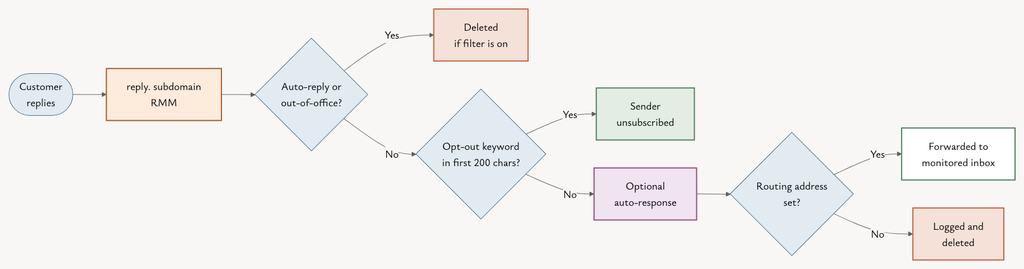
- Delete auto-responses — removes automatic replies and out-of-office messages.
- Auto-response — sends an optional acknowledgement to replies that aren’t filtered out.
- Routing — forwards the remaining replies to one monitored inbox or designated user.
Opt-out keywords (always on with RMM): RMM evaluates every manual reply. If unsub, unsubscribe, opt-out, remove or stop appears in the first 200 characters of the body, the sender is unsubscribed.
If you don’t set a forwarding address: Salesforce says incoming messages are “logged and deleted”. Not stored somewhere for later — deleted.
Domain level, not from-address level: of all the Marketing Cloud Next domains, RMM lives only on the authenticated domain, and there are no RMM settings on the from address. Every from address on mail.example.com shares the same filters, auto-response and routing. Trailhead confirms the opt-out handling “applies to all messages sent from your authenticated domain and can’t be turned on per campaign.”
That last point shapes everything that follows.
Reply scenarios: how RMM handles real replies
So, let’s walk through what actually lands in the reply inbox, and which settings deal with it.
1. An out-of-office reply that should just disappear
“I’m away until Monday with limited access to email.”
Setting: Delete auto-responses → on.
Outcome: it’s filtered out and deleted before it reaches anyone. That’s the cheapest win in RMM, and with a big send it’s the difference between a usable inbox and thousands of holiday notices.
2. A reply that should go to the right person
“Can someone from the events team call me about the venue?”
Setting: Routing → forward to the inbox that team monitors, e.g. events-team@example.com.
Outcome: the reply is forwarded and a human picks it up. Make sure that inbox is genuinely watched, and allowlisted too — a community test found forwarded replies landing in spam.
3. A reply that expects a response
“Does the 20% code work on sale items?”
Settings: Auto-response → on (e.g. “Thanks — we’ve got your message and will reply within two working days”), plus Routing → a customer service inbox.
Outcome: the customer gets an instant acknowledgement, and the question reaches someone who can actually answer it. The auto-response is a holding message, not the answer, so keep it generic (in a community write-up, the auto-reply didn’t support merge fields).
4. A reply that should go to different people depending on conditions
Event questions to the events team, order questions to customer service, B2B replies to the account manager.
The catch: RMM routing takes one forwarding address per authenticated domain. There’s no rule builder inside RMM. So the “conditions” have to come from somewhere else:
- Condition = brand or business line → separate authenticated domains. Send events email from
events.example.comand offers fromoffers.example.com. Each domain gets its own RMM routing address. - Condition = the recipient → dynamic reply-to. Authorise
example.comand resolve the reply-to per contact, e.g. the account owner. Replies skip RMM and go straight to that person. - Condition = the content of the reply → route downstream. Forward everything to one shared mailbox and apply rules there: mailbox rules, or Email-to-Case with case assignment in Service Cloud.
If I were advising a client, I’d start with the third option. It keeps RMM’s filtering and opt-out handling in play, and the routing logic lives somewhere a service team already maintains. I’d only split domains when there’s a reputation or brand reason to do it anyway.
5. A reply that’s really an unsubscribe
“STOP sending me these.”
Setting: nothing extra. Opt-out keywords are processed automatically.
Outcome: “stop” is in the first 200 characters, so the sender is unsubscribed without anyone lifting a finger. A reply that leads with three paragraphs of complaint before saying “remove me” won’t trigger it, though, so your routed inbox still needs a human eye.
| Reply | RMM setting | What happens |
|---|---|---|
| Out-of-office | Delete auto-responses | Deleted |
| Question for a team | Routing | Forwarded to one inbox |
| Needs an answer | Auto-response + Routing | Acknowledged, then forwarded |
| Different people by condition | Separate domains, dynamic reply-to or downstream rules | Depends on the pattern |
| “Stop” / “unsubscribe” | Always on | Sender unsubscribed |
| Anything, with no routing address | — | Logged and deleted |
So what should we actually take away from all this?
1. Which domain lets me send?
Only the authenticated domain. Of the three Marketing Cloud Next domains, it’s the one hard MUST, and everything else either depends on it or is optional.
2. Do I need an authorised domain?
Only if you use dynamic reply-to or CC. If replies go through RMM, Salesforce says you don’t.
3. Is a tracking link domain worth it?
Yes, for brand trust. Just remember the unsubscribe and Preference Manager links won’t use it.
4. Where do replies go?
To the system-managed reply address on your reply. subdomain, then through RMM’s filters, then to one routing address — or into the bin if you haven’t set one.
5. Can different senders route replies differently?
Not within one domain. RMM is set per authenticated domain, so conditional routing means separate domains, dynamic reply-to or rules downstream.
The bigger picture
Marketing Cloud Next domains feel like plumbing. You set them up once, hand the DNS to IT, and forget about them.
But in Marketing Cloud Next they quietly decide three things your marketers care about: whether email sends, whose brand is on every link, and whether a customer’s reply reaches a human.
So the question to ask in a discovery workshop isn’t:
“Have we set up our Marketing Cloud Next domains?”
It’s:
“Which domains, for which senders, and where should every reply end up?”
The most common mistake I’d expect is treating reply handling as an afterthought. Because it’s the one part of email where the customer is talking to us.
Well… are we listening?
If reply handling has you thinking about opt-outs, my post on Marketing Cloud Next consent covers how subscriptions and consent fit together. And if you’re working through a Marketing Cloud Next setup, I’m always happy to compare notes.