

Next Level #3 · Implementation
You add your sending domain in Marketing Cloud Next. Salesforce generates the DNS records and offers you a tidy BIND zone file to download.
Your IT team imports it in two clicks. Job done.
Except that domain has been sending email for years. Through your old marketing automation platform, maybe through Marketing Cloud Engagement, and very possibly through your corporate mailbox too.
So, before that file goes anywhere near your DNS, what should you check, and what should you change?
So, let’s have a look.
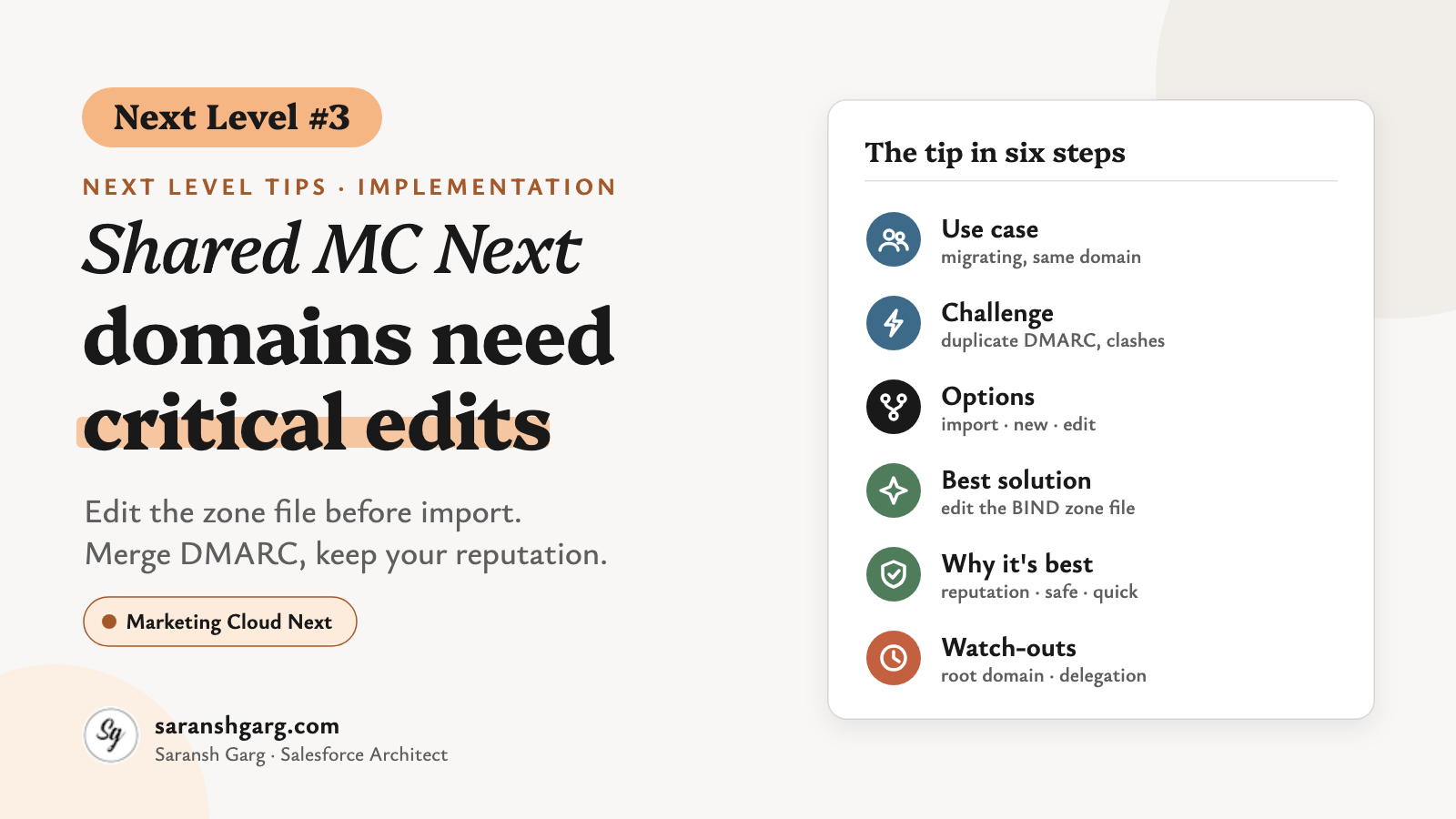
MC Next domains tip in a nutshell
The use case
This comes up most with SMBs migrating from another marketing automation platform. They’ve spent years warming mail.example.com (or even example.com), and subscribers recognise it.
Starting again on a brand-new subdomain means a new reputation, a warm-up period and a nervous few weeks of open rates. Nobody wants to explain that dip to the CMO.
So they want shared MC Next domains: the same domain, a new platform.
Example scenarios
- A retailer moving from another email platform keeps
news.example.comand runs both platforms in parallel for a month of migration. - A B2B firm sends from the root domain
example.com, which also carries all of its corporate email.
The challenge
“It’s just DNS. Import the file Salesforce gives you.”
But for MC Next domains, that file is written for a domain with nothing on it. Salesforce’s CNAME records article lists what it contains: three DKIM CNAMEs, the inbound functional subdomain CNAMEs, and a DMARC TXT record of v=DMARC1; p=reject; adkim=r; aspf=r; pct=100;. The zone file also carries anonymous. and fbl. CNAMEs.
On a domain you already use, three things go wrong:
- Duplicate DMARC: you can only have one DMARC record per name. Salesforce’s own Marketing Cloud Engagement DMARC article says so plainly. Two records and receivers ignore the policy entirely.
- A policy you didn’t choose: that same article warns that a reject policy assumes the domain is used only on Salesforce. Anything else you send from it could be rejected.
- Record collisions: a CNAME can’t sit alongside any other record at the same name. If your old platform already uses
bounce.orreply.on that domain, one of them has to go.
What breaks: your other platforms’ email, or Marketing Cloud Next activation. Who notices: your customers, before you do.
Cost: a failed activation at best, or rejected mail from every other platform sharing your MC Next domains at worst.
Possible solutions for shared MC Next domains
Option A: Import the zone file as-is
Fast, and fine for MC Next domains that are genuinely empty. On a shared one, it’s how you end up with duplicate DMARC records and a reject policy nobody approved.
Option B: Use a new dedicated subdomain
Clean and conflict-free, e.g. mc.example.com. But you start with zero domain reputation and need a warm-up plan.
Option C: Edit the zone file and merge records
Keep your existing MC Next domains reputation, but strip or merge whatever conflicts before import. It takes a careful hour with whoever owns DNS.
| Option | Effort | Risk to existing mail | Keeps domain reputation | Fit |
|---|---|---|---|---|
| A. Import as-is | Very low | High | Yes | Empty domains only |
| B. New subdomain | Low | None | No | Greenfield brands |
| C. Edit and merge | Medium | Low | Yes | Migrations and shared domains |
The best solution: edit the zone file, then merge
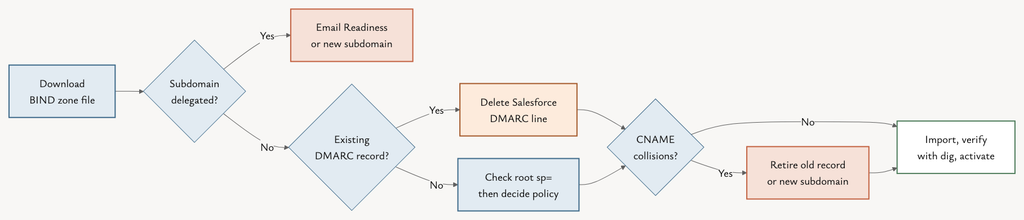
1. Download the zone file. Setup → Authenticated Domains → your domain → Show Details → DNS Records. You can also copy each record by hand from Manual DNS Record Information.
2. Check whether the subdomain is delegated. If its NS records point to another provider (common with a Marketing Cloud Engagement Sender Authentication Package), you can’t add records in your own DNS at all. For Engagement, look at Email Readiness for Marketing Cloud Next under Setup → Marketing Cloud → Marketing Cloud Engagement → Additional Features.
3. List what’s already there.
dig +short NS mail.example.com
dig +short TXT _dmarc.mail.example.com
dig +short TXT _dmarc.example.com
dig +short CNAME bounce.mail.example.com
dig +short CNAME reply.mail.example.com
A subdomain with no DMARC record of its own inherits the root domain’s policy, including any sp= tag.
4. Clean up the BIND file’s housekeeping. Remove any $TTL, SOA or NS lines your DNS provider doesn’t want. Check $ORIGIN: names without a trailing dot are relative to it. Import into the wrong zone and you get reply.mail.example.com.example.com.
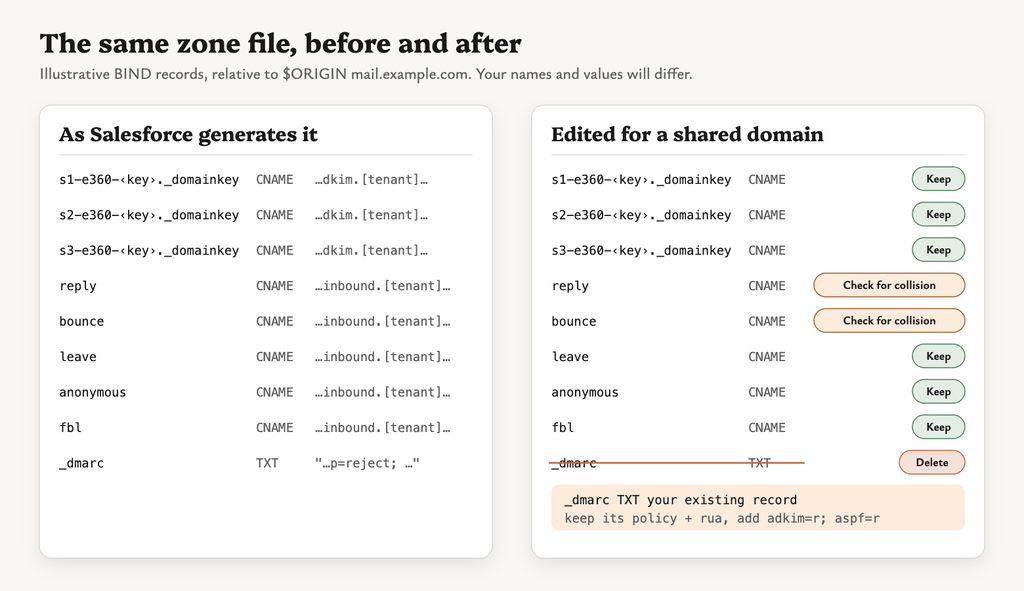
5. Delete or merge the DMARC line. This is the critical edit.
; Salesforce sample, delete this line on a shared domain
_dmarc  IN  TXT  "v=DMARC1; p=reject; adkim=r; aspf=r; pct=100;"

; Your existing record stays, keeping relaxed alignment
_dmarc  IN  TXT  "v=DMARC1; p=quarantine; adkim=r; aspf=r; rua=mailto:dmarc@example.com"
Keep your current policy and reporting address. Only add adkim=r; aspf=r if they aren’t there.
6. Resolve CNAME collisions. Any of bounce., reply., leave., anonymous. or fbl. already in use by your old platform must be retired, or you’ll need a different subdomain.
7. Leave SPF alone. Salesforce’s authentication article says “The SPF records are managed by Salesforce and you do not need to set up any additional SPF records.” They sit behind the bounce CNAME. Don’t add a second SPF record. Keep your old platform’s include: in your existing record until it stops sending.
8. Import, verify, activate. Check each record with dig, then tick “I completed my changes with my DNS provider” and Activate my Domain.
Why this is the best solution
- Keeps the reputation: your subscribers and inbox providers already know the domain.
- Protects other senders: your corporate mail and old platform keep working through migration.
- One DMARC policy: you stay in control of it, not a sample record.
- Low effort: it’s an hour of careful editing, not a project.
If a client asked me tomorrow, I’d go with this for any SMB migrating platforms. I’d only pick a new subdomain if the old one carries a poor reputation worth leaving behind.
Considerations and limitations
- Root vs subdomain: for MC Next domains on a root domain, always delete Salesforce’s DMARC line. Salesforce warns that
p=rejectat the root “can affect all corporate email sent from that domain”. - DMARC ownership: Salesforce Support “cannot assist with configuring or determining the appropriate DMARC record”, per the authentication article. Involve your email security owner.
- SPF alignment: as I read the DMARC standard, the bounce subdomain only aligns under relaxed SPF alignment. With
aspf=s, DKIM alone carries DMARC. - Domain reputation, not IP reputation: a community write-up notes that sharing a domain doesn’t share sending IPs. Ramp volume gradually.
- Timing: allow up to 48–72 hours for propagation before activating.
- Editions: Starter, Pro Suite and Foundations send from a Salesforce domain and need no DNS setup.
This solution isn’t right if…
- the old domain has a poor reputation or blocklist history: start fresh on a new subdomain.
- your old platform needs the same functional subdomains and must keep running: use a separate subdomain.
Wrap-up
DNS is the least glamorous part of setting up MC Next domains. It’s also the part that can silently break email you didn’t even mean to touch.
The zone file is a starting point, not an instruction.
Related reading: if you’re still working out which domains you need, my post on Marketing Cloud Next domains covers authenticated, authorised and tracking link domains.
This is Next Level Tip #3. All tips: Next Level Tips. Got a hidden tip of your own? I’d love to hear it.