

Next Level #2 · Implementation
“Sales captured the newsletter opt-in on the Contact. It’s in Data 360. So why did the send skip them?”
If you’re mid-way through a Marketing Cloud Next build, you’ve probably heard that question. Maybe in a slightly louder voice.
Consent in Marketing Cloud Next starts at “no”. And it only becomes “yes” if it arrives the right way.
That right way almost always runs through consent flows. The tricky part is knowing which flow, for which use case, and when a plain import is enough.
So, let’s have a look.
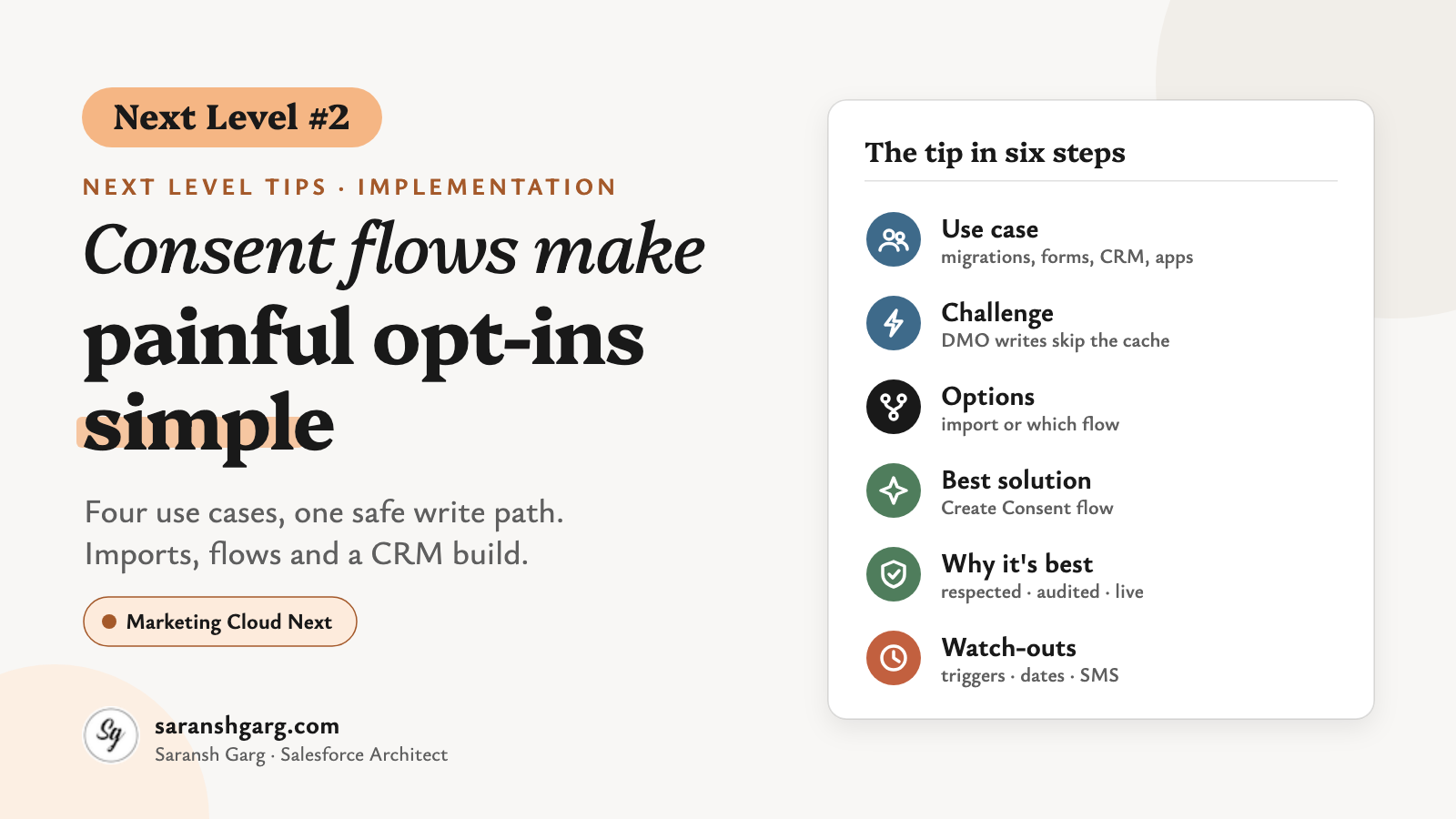
Consent flows tip in a nutshell
- Use case: every implementation has to get opt-ins and opt-outs into Marketing Cloud Next from migrations, forms, external systems and CRM.
- Challenge: writing straight into the Communication Subscription Consent DMO looks like it worked, but it skips the consent cache, so sends may ignore it.
- Best solution: match each source to the right path: Consent Imports for one-off loads, and a consent flow (Create Consent or Consent Request) for anything ongoing.
- Watch out for: consent flows only run on three trigger types, and CRM consent isn’t picked up automatically.
The use case: when an implementation needs consent flows
If you need the background on the consent model (subscriptions, channels, contact points and the “cube”), my post on Marketing Cloud Next consent covers it. This tip is the build-side follow-up.
On real projects, consent arrives from four places. Each one needs consent flows, or an import, wired slightly differently:
| # | Use case | Typical source | Flow type | Consent element | Import? |
|---|---|---|---|---|---|
| A | Migrating existing consent | Marketing Cloud Engagement, Account Engagement, a legacy ESP | None for the one-off load | None | Yes: Consent Imports, one CSV per channel, subscription and status |
| B | Website sign-up and double opt-in | Marketing Cloud Next forms | Automation Event-Triggered (Form-Triggered) | Consent Request | No |
| C | Consent captured outside Salesforce | Checkout, mobile app, in-store, external preference centre | Data Cloud Record-Triggered, on a staging DMO | Create Consent | Yes, a one-off backfill of history |
| D | Consent captured in CRM | Sales or service agents, web-to-lead, Lead and Contact fields | Data Cloud Record-Triggered, on the CRM-sourced DMO | Create Consent | Optional, for the initial load |
The flow types aren’t my choice. Salesforce’s Trailhead consent module says: “For Data Cloud Record-Triggered flows, use the Create Consent action. For Automation Event and On-Demand Triggered flows, use the Consent Request action.” It adds that all other triggers aren’t supported.
Example scenarios
- A retailer moving from Marketing Cloud Engagement loads three years of newsletter opt-ins on day one, then captures new ones from a footer form.
- A B2B firm’s sales reps tick “Agreed to event updates” on a Contact after a call, and expect the next event invite to reach that person.
The challenge: consent written to the DMO isn’t always consent
Here’s the assumption most of us start with:
“Consent is just a DMO. Map a data stream to Communication Subscription Consent and we’re done.”
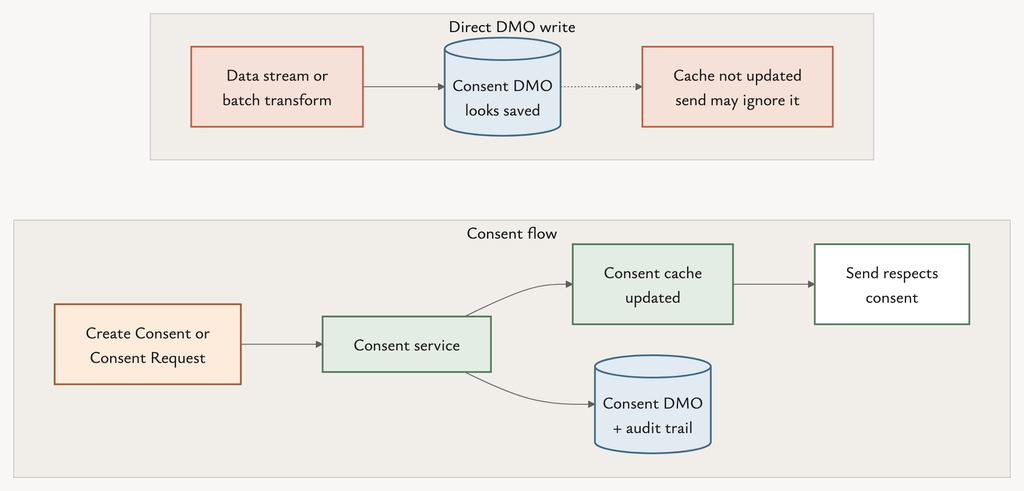
But the Salesforce partner workshop on consent says otherwise. Batch data transforms and data streams can update that DMO, but they “do not update the consent cache layer used by the platform”. So consent changes may not be respected during sends, “even though it appears that updates were saved”.
The Create Consent element is different. It goes through the consent service, which updates the cache first and then ingests the record into the DMO.
Two more things quietly catch teams out:
- No record means no: Salesforce’s consent considerations say records with no consent value are treated as opted out for every channel and subscription.
- CRM consent isn’t recognised: the same page says CRM consent data is separate from Marketing Cloud Next and isn’t picked up automatically.
What breaks: campaigns go to a fraction of the expected audience, or worse, to people who opted out. Who notices: the marketer, usually on launch day. Cost: a failed launch, or a compliance conversation nobody wants.
Possible solutions: implementing consent flows for each use case
Use case A: migrating existing consent with Consent Imports
For a one-off historic load, you don’t need consent flows at all. Consent Imports writes through the consent service for you.
- Go to the Consent page → Consent Imports → Import.
- Pick the channel and communication subscription (and the sender code for SMS).
- Choose one consent status for the whole file: Opt In or Opt Out.
- Upload a CSV where column 1 is the email address or phone number and column 2 is the consent date (file format rules).
Files: one per channel × subscription × status. Email and SMS opt-ins and opt-outs for one subscription means four files. Phone numbers: use E.164 format with the country code, for example +447700900123. Dates: if the consent date is older than the one already stored, the row is ignored. So send the real capture date, not today’s date. From Account Engagement: Salesforce’s Account Engagement consent article recommends using Publication Opt-In Date/Time as the consent date. It also says that if a prospect is opted out there, you shouldn’t opt them in to any Marketing Cloud Next subscription.
Use case B: website sign-up and double opt-in
Salesforce says the consent action is included by default in Signup Form campaign flows (consent concepts). For single opt-in, that’s mostly the job done.
Double opt-in needs two steps, and only the second one writes consent:
- Form-Triggered flow: captures the submission and sends a transactional confirmation email with a unique confirmation link. It doesn’t write consent yet.
- Confirmation step: the click on the confirmation landing page triggers a flow that uses Consent Request to write OPT_IN.
Trailhead is clear on that last step: “you must use the Consent Request action to trigger the Consent Status update.” The confirmation email works without consent because, by default, consent checks only apply to promotional email.
Use case C: consent captured outside Salesforce
This is where most teams reach for a data stream straight into the consent DMO. Don’t. Consent flows on a staging DMO are the safe route.
- Stream into a staging DMO: create a custom DMO such as External Consent Event (contact point, subscription key, status, captured date, source system).
- Trigger on it: build a Data Cloud Record-Triggered flow on that DMO.
- Map and write: use a Decision to turn the source system’s values into a subscription and a channel, then call Create Consent.
- Backfill once: load the history with Consent Imports, then let the flow handle changes from go-live.
Use case D: consent captured in CRM
Two options, and most orgs need both:
- Manual changes: add the Privacy Consent Status component to Lead, Contact and Person Account pages. Salesforce says it updates both the cache and the DMO, so agents can change consent directly.
- Automated changes: when consent lives in Lead or Contact fields (web-to-lead, agent checkboxes or integrations), use the CRM-to-consent flow in the next section.
Comparing the approaches
| Approach | Trigger | Real-time? | Cache-safe? | Effort | Best fit |
|---|---|---|---|---|---|
| Consent Imports | Manual upload | No | Yes | Low | A: migrations and backfills |
| Signup form flow + Consent Request | Form submission | Yes | Yes | Low–Medium | B: forms and double opt-in |
| Staging DMO + Create Consent | DMO record change | Near real-time | Yes | Medium | C: external systems |
| CRM fields → DMO + Create Consent | DMO record change | Near real-time | Yes | Medium | D: CRM-captured consent |
| Data stream straight into the consent DMO | Ingestion | Near real-time | No | Low | Never for live consent |
The best solution: an end-to-end CRM consent flow
I’m going deep on use case D because it’s the one Salesforce documents least, and the one I see most often. Sales and service teams already capture consent in CRM, and they expect Marketing Cloud Next to respect it. Consent flows make that happen without a single CSV.
A note on sources: the flow types, the Create Consent element and the cache behaviour all come from Salesforce. The way they’re put together below is my recommended design, so build it in a sandbox first.
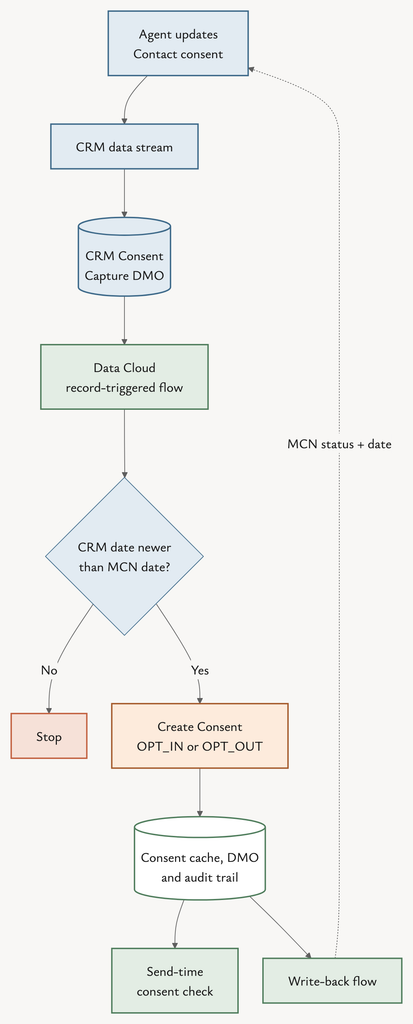
Scenario: agents tick a newsletter opt-in or opt-out on the Contact during a call. Marketing Cloud Next should respect it on the next send, and an unsubscribe in Marketing Cloud Next should show up on the Contact.
Step 1: set up the subscription
Create the Newsletter communication subscription with the Email channel on the Consent page. Then add it to your preference page, so people can opt out of it there too.
Step 2: add consent fields on the Contact
| Field | Type | Purpose |
|---|---|---|
Newsletter_Consent__c | Picklist: Opt In, Opt Out | What the agent captured |
Newsletter_Consent_Date__c | Date/Time | When the person actually agreed or refused |
Newsletter_Consent_Source__c | Picklist: Phone, Event, Web-to-Lead | How it was captured |
MCN_Newsletter_Status__c | Picklist (read-only) | Status written back from Marketing Cloud Next |
MCN_Newsletter_Status_Date__c | Date/Time (read-only) | When that status was last captured |
Use a before-save record-triggered flow in CRM so that Newsletter_Consent_Date__c is stamped every time Newsletter_Consent__c changes. That date drives everything that follows.
Step 3: stream the fields into Data 360
In the Salesforce CRM data stream for Contact, add the five fields. Map them to a custom DMO, CRM Consent Capture, keyed on Contact ID, together with the email address.
Why a separate DMO: the flow only fires on the consent fields, not on every Contact edit, and the mapping stays easy to read.
Step 4: build the Data Cloud Record-Triggered flow
Trigger: CRM Consent Capture is created or updated, and Newsletter_Consent__c isn’t blank.
- Decision: is the CRM change newer? Continue only if
Newsletter_Consent_Date__cis later thanMCN_Newsletter_Status_Date__c, or that field is blank. This stops an old CRM tick from overriding a newer unsubscribe in Marketing Cloud Next. - Decision: what’s the status? Map Opt In →
OPT_INand Opt Out →OPT_OUT. - Create Consent, with these values:
Contact point value      = {!$Record.Email}
Channel                  = Email
Communication subscription = Newsletter
Consent status           = OPT_IN | OPT_OUT     (upper case, with underscore)
Consent captured date    = {!$Record.Newsletter_Consent_Date__c}
Captured source name     = "CRM – Contact"
Captured source details  = {!$Record.Newsletter_Consent_Source__c} & " · " & {!$Record.ContactId}
The input labels differ slightly between releases, so match them in your org. The values are what matter.
Why fill the source fields: the Consent Audit Trail has no user or actor field. The captured source name and details are the only “who and how” you’ll have when someone asks.
Step 5: write the status back to the Contact
Build a second Data Cloud Record-Triggered flow on Communication Subscription Consent for the Newsletter email subscription. Use it to update MCN_Newsletter_Status__c and MCN_Newsletter_Status_Date__c on the matching Contact.
That gives agents the true status, and it feeds the date check in Step 4. When the write-back updates the Contact, the forward flow fires again but stops at the first Decision, so there’s no loop.
Step 6: test it end to end
- Set Opt In on a test Contact and wait for the data stream to refresh.
- Check that the status shows in the Privacy Consent Status component on the Contact.
- In Query Editor, check the Consent Audit Trail row: ConsentStatus, ConsentCaptureSourceDateTime and your source name.
- Send a test promotional email to a segment that includes the Contact.
- Unsubscribe through the preference page, then check that the Contact’s MCN status changes to Opt Out.
- Re-save the Contact with the old Opt In. Nothing should change.
Why this is the best solution
- Respected at send: Create Consent goes through the consent service, so the cache and the DMO agree.
- Auditable: every change lands in the Consent Audit Trail with a source name and details you control.
- Safe both ways: the date check stops stale CRM values from overriding newer unsubscribes, and the write-back stops agents working from an outdated status.
- No imports: after the initial load, nobody exports CSVs on a Friday afternoon.
If a client asked me tomorrow, I’d agree one rule in the first consent workshop: nothing writes to the consent DMO except consent flows and Consent Imports. Every source then becomes “which flow or import?”, and that’s a much easier conversation.
When CRM consent changes rarely and only agents touch it, I’d skip the flow and use the Privacy Consent Status component on its own.
Considerations and limitations
- Supported triggers: consent flows only run as Data Cloud Record-Triggered, Automation Event-Triggered and On-Demand Triggered flows. All other triggers aren’t supported (Trailhead).
- Element names: Create Consent is for Data Cloud Record-Triggered flows, and Consent Request is for Automation Event and On-Demand flows. Check the labels in your org.
- Don’t use MessagingConsent: Trailhead warns that the MessagingConsent and MessagingConsentV2 actions “can cause system issues”.
- Status values:
OptInandOptOutinstead ofOPT_INandOPT_OUTare a known cause of rejected rows (Audit Trail article). - Data latency: Use case D depends on the CRM data stream refresh, so it’s near real-time, not instant. For “consent now”, use the Privacy Consent Status component.
- Contact points, not people: consent belongs to the email address or phone number. If a Contact’s email changes, the new address has no consent until you write one.
- SMS: consent is tied to a sender code, and STOP-style keywords opt the person out of everything from that sender code. Plan SMS flows per sender code.
- Never delete a subscription: deleting it deletes its consent records too. Remove it from preference pages instead.
- Edition: Enterprise or Unlimited with Marketing Cloud Next Growth or Advanced (Import Consent Data).
- Release risk: Salesforce doesn’t document triggering a flow on a CRM-sourced DMO or on the consent DMO (Step 5) for consent. Test both in a sandbox.
This solution isn’t right if… consent only changes through forms and preference pages, which already handle it. It’s also not right for a one-off migration, where Consent Imports is quicker and just as safe.
Wrap-up
Consent in Marketing Cloud Next isn’t a field you map. It’s a service you call.
Once the team agrees that every source goes through consent flows or a Consent Imports file, the “why didn’t they get the email?” tickets mostly stop.
Pick the path per source, fill in the audit fields, and never let a data stream write to the consent DMO.
If forms are your main source of opt-ins, my post on Marketing Cloud Next forms covers what they can and can’t do today. And for the consent model behind all of this, Marketing Cloud Next consent: the hidden cube is the place to start.
This is Next Level #2. All tips: Next Level Tips. Got a hidden tip of your own? I’d love to hear it.