

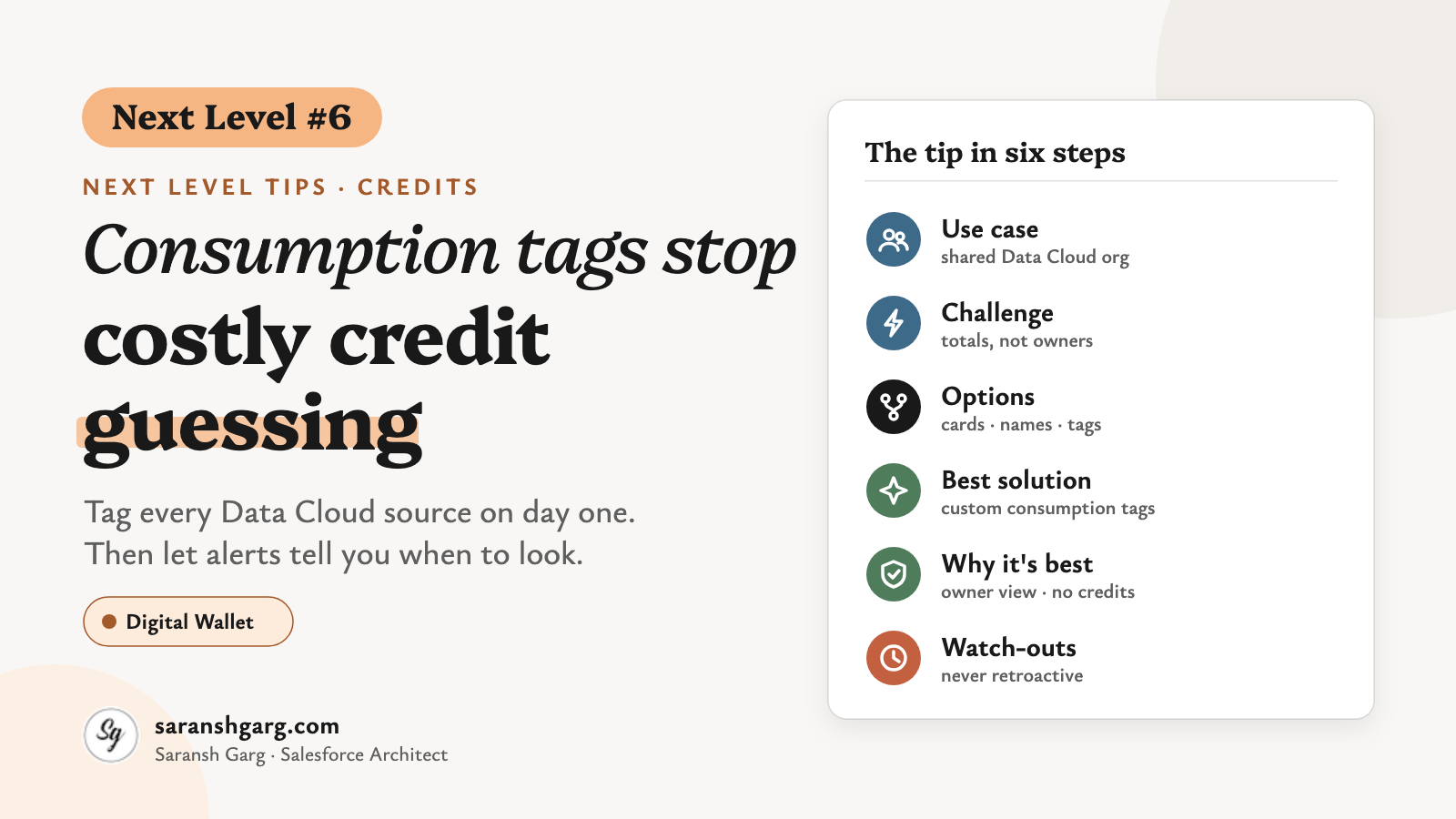
Next Level #6 · Credits
The month closes. Finance looks at Digital Wallet and asks a fair question: which of our data sources used all those Data Cloud credits?
You open the consumption cards. You see totals per card, per usage type, per day.
What you don’t see is “the ecommerce stream”, “the EMEA team” or “the loyalty project”.
So how do you get credits broken down by source and team, and why should you set it up before anyone asks?
So, let’s have a look.
Consumption tags tip in a nutshell
The use case
In Marketing Cloud Next, every data stream, segment and activation runs on Data Cloud (Data 360) and draws on one credit pool.
That works while one team owns everything. Once the CRM, ecommerce and regional teams share the org, every credit is “ours” until the bill grows, and then nobody owns it.
Example scenarios
- A retailer ingests web engagement, POS and loyalty data, and wants to know which source drives the batch pipeline spend.
- A global brand runs one org for three regions and needs to recharge Data Cloud credits to each regional cost centre.
The challenge
“Data Cloud has tagging. We’ll just tag the objects.”
Well… yes. But there are two very different features with the same word in them.
Data Cloud’s governance tags (see Tag Propagation in Data 360) label objects and fields for data classification. Consumption tags live in Digital Wallet and label the usage events behind your credit bill. Only the second one helps finance.
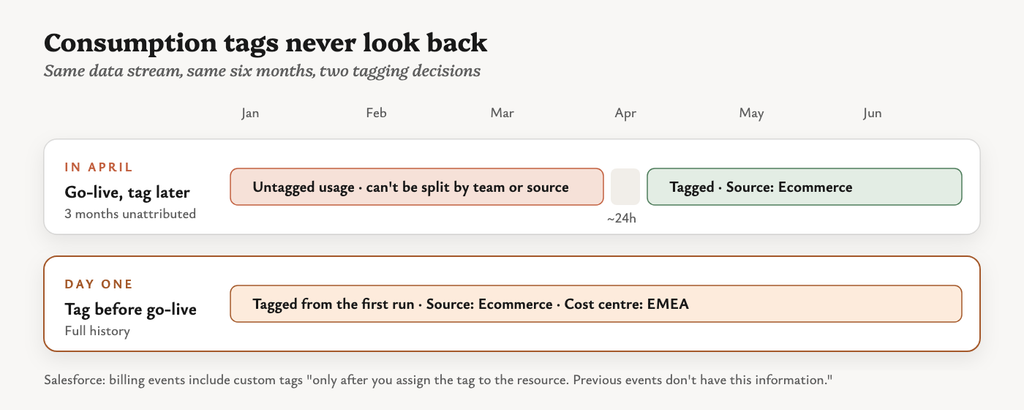
And here’s the interesting part. Salesforce says billing events include custom tag groups and values “only after you assign the tag to the resource. Previous events don’t have this information.” It can also take up to 24 hours before new events start carrying the tag.
What breaks: tag a data stream three months after go-live, and those three months can never be split by team or source.
Who notices: finance, at the first quarterly review, usually after the org has a few dozen streams.
Possible solutions
Option A: do nothing
Read the consumption cards in Digital Wallet. They give totals per card and usage type (segmentation, batch data pipeline and so on), but nothing about owners.
Option B: report on standard tags only
Every usage event already carries standard tags such as Resource ID or API Name and Resource Type (for example DataStreamDefinition or MarketSegmentDefinition). You can report per stream or segment, but you still have to map hundreds of API names to owners by hand.
Option C: a naming convention
Prefix stream and segment names (EMEA_, ECOM_) and group by name. It’s free, but it breaks the first time someone forgets the prefix.
Option D: custom consumption tags plus a naming convention
Define tag groups such as Source system or Cost centre in Digital Wallet, assign them to each resource as it’s created, and report on them. Keep the naming convention as a backup.
| Option | Effort | Who/what it tells you | Retroactive? | Maintenance | Fit |
|---|---|---|---|---|---|
| A: Consumption cards | None | Usage type only | n/a | None | Single-team orgs |
| B: Standard tags | Low | Resource only | Yes, for history | Manual mapping | Quick audits |
| C: Naming convention | Low | Owner, if names are right | Only if names were right | Fragile | Small orgs |
| D: Custom consumption tags | Medium, once | Owner, source, cost centre | No, future only | Part of build | Shared orgs |
The best solution: a consumption tags plan from day one
Where: App Launcher → Digital Wallet → Consumption Tags Edition: Enterprise, Performance and Unlimited; needs a Data 360 licence (not a CDP licence); production only, as Digital Wallet isn’t available in sandboxes. Credits: creating tags and building reports on the TenantEnrichedUsageEvent DLO don’t consume Data 360 service credits.
- Design 3–4 tag groups before you build anything. For example Source system (CRM, Ecommerce, POS, Loyalty), Business unit (EMEA, APAC, NA), Cost centre and Use case. A custom tag is a tag group plus a tag value.
- Assign permissions. Give Manage Consumption Tags to the one or two people who own the tag plan, Assign Consumption Tags to the builders, and View Consumption Tags to everyone else.
- Create the tags. In Consumption Tags, click New Tag and pick or create its tag group.
- Tag every resource at creation. Go to Tagged Resources → Assign Tag to Resource. Start with data streams and segments, the resources Salesforce confirms in its resource reference. Check the Data 360 Reportable Resource References page for the full list.
- Install the Consumption Tagging app. You can create tags without it, but you need it for reports on your custom tags.
- Build the report. In Data 360, go to Reports → New Report → Semantic Data Models → Consumption Insights Extended Semantic Model. Add Units Consumed as a column and group rows by your tag group under Calculated Dimensions. Clone the out-of-the-box reports rather than editing them.
- Add Consumption Threshold Alerts. In Setup → Flows → New Flow, choose the Consumption Threshold Alerts template, set recipients and thresholds, then save and activate (details below).
- Make tagging part of “done”. No data stream or segment goes live without its tags, the same way it doesn’t go live without a field mapping.
Pair tags with Consumption Threshold Alerts
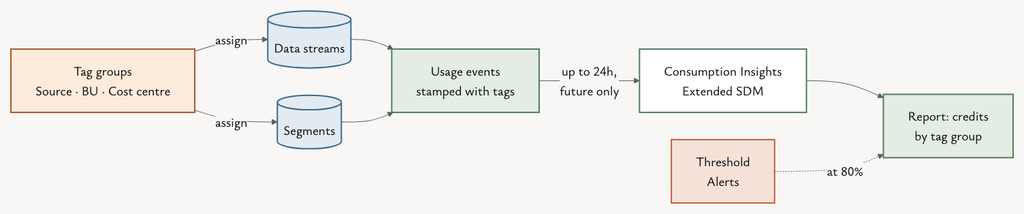
Tags tell you who used the credits. Consumption Threshold Alerts tell you when to look.
What it is: a flow template that checks usage against each consumption card’s entitlement on a schedule and notifies people by in-app notification, email or Slack. Default thresholds: 50%, 70%, 80%, 85%, 90%, 95% and 100%. Each one notifies once, and 100% repeats daily until usage drops back. Per card: you can set a threshold for a specific card as a percentage or as raw units, using the card’s developer name. Recipients: System Administrator profile users by default. Change that to a profile, permission set or public group that includes the budget owner. Credits: retrieving usage doesn’t consume Data Cloud credits, but the flow counts toward standard flow limits.
The workflow is simple: an alert fires at 80%, and the tag report shows which source or team moved the needle. Without tags, the alert is just a nervous email.
Why this is the best solution
- It answers the real question: consumption tags group credits by owner, source or cost centre, not just by usage type.
- It’s cheap to run: creating tags and reporting on the TenantEnrichedUsageEvent DLO don’t use Data 360 service credits.
- It scales: 30 tag groups and 255 tags per group are plenty for any sensible plan.
- It protects history: tagging at creation is the only way to get full history, because tags never backfill.
- It closes the loop: threshold alerts warn early, and tags point at the cause.
If a client asked me tomorrow, I’d agree the tag groups in the first design workshop, next to the data stream list, long before the first credit is spent. I’d only stop at Option B for a one-off audit of an org that’s already live.
Considerations and limitations
- Not retroactive: only events after the tag is assigned carry it, with up to 24 hours’ delay (source).
- Limits: 30 tag groups, 255 tags per group, names up to 30 characters, and only one tag from a group on each resource (source).
- Renames and deletes: a renamed tag keeps its old name on historical usage; a deleted tag can’t be recovered. You can edit a tag group only while none of its tags are assigned.
- No inheritance (my reading): tags are stored per resource, so tagging a data stream doesn’t tag the segments built on it. Tag both.
- Org-level usage: storage and real-time profile caching are calculated for the whole org, so they don’t map to a source or tag (source).
- Hidden reporting costs: joining Digital Wallet data with other non-cost-excluded objects, using it in data transforms or querying it over JDBC does consume credits (source).
- Don’t delete the SDM: there’s no programmatic way to recreate the Consumption Insights Extended semantic model.
- Compliance: keep personal data out of tag names. Salesforce says to avoid PII.
- Alerts are per card: Consumption Threshold Alerts work per consumption card, not per tag, and only for cards with active entitlements. They run in production only.
This solution isn’t right if… one team owns the whole org and nobody recharges credits; the consumption cards (Option A) are enough. It’s also not a fix for a past bill. For that, use Option B and accept the manual mapping.
Wrap-up
Credits are a shared budget, and a shared budget without labels starts arguments.
Consumption tags turn “we used a lot” into “the POS stream and the APAC segments used a lot”. Threshold alerts make sure you hear about it at 80%, not at the end of the month.
Tag on day one. History doesn’t wait.
If you’re planning a multi-region org, my post on Data 360 for global brands covers the data space and region decisions that your tag groups should mirror. And if some of your sources come in through zero copy, Data Cloud zero copy trade-offs explains where those credits land.
This is Next Level #6. Previous tip: MC Next migration rewards smart, lean SMBs · All tips: Next Level Tips. Got a hidden tip of your own? I’d love to hear it.