

Next Level #5 · Data
Week one of a Marketing Cloud Next build. Someone follows the setup steps, creates a data graph called “Marketing”, sets it as the default, and personalisation works. Cool, right?
Week six, the loyalty team wants the customer’s tier in the subject line. Add a field.
Week ten, the ecommerce team wants the last order in a repeater. Add an object.
By month six, it carries dozens of fields from campaigns that ended long ago, and nobody dares touch it.
So how do you design data graphs that stay lean, can change safely and don’t quietly cost you credits?
So, let’s have a look.
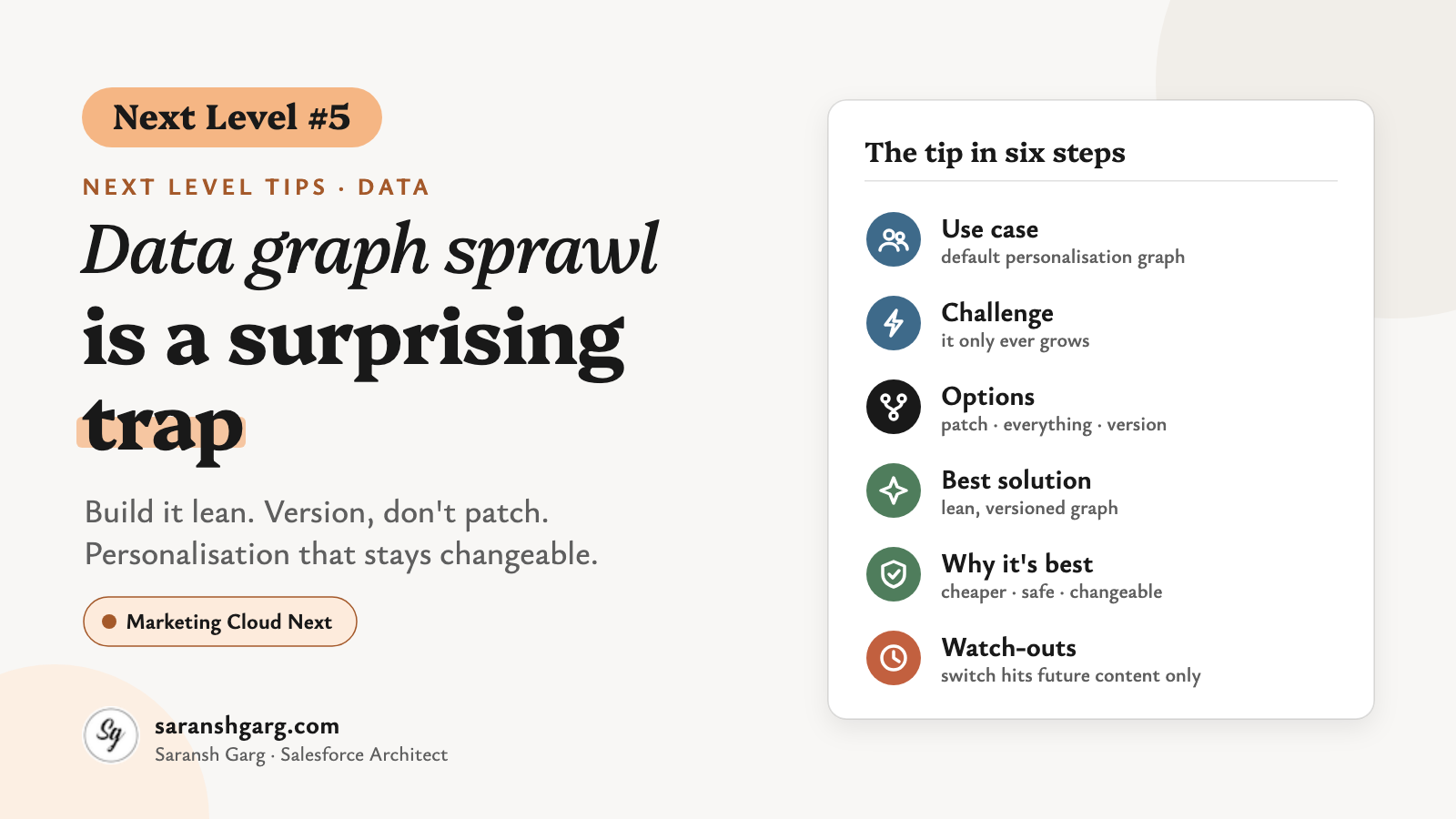
Data graph tip in a nutshell
- Use case: every Marketing Cloud Next org needs a default data graph to personalise emails, SMS and flow decisions.
- Challenge: a built graph only really grows. Edits trigger rebuilds, switching graphs only affects future content, and the fields inside it lock your data model.
- Best solution: a lean graph built from a field inventory, versioned (
v1,v2) rather than patched, with a refresh schedule chosen on purpose. - Watch out for: switching the default graph applies only to future content, so the old version stays live until everything built on it is retired.
The use case: why Marketing Cloud Next needs a data graph
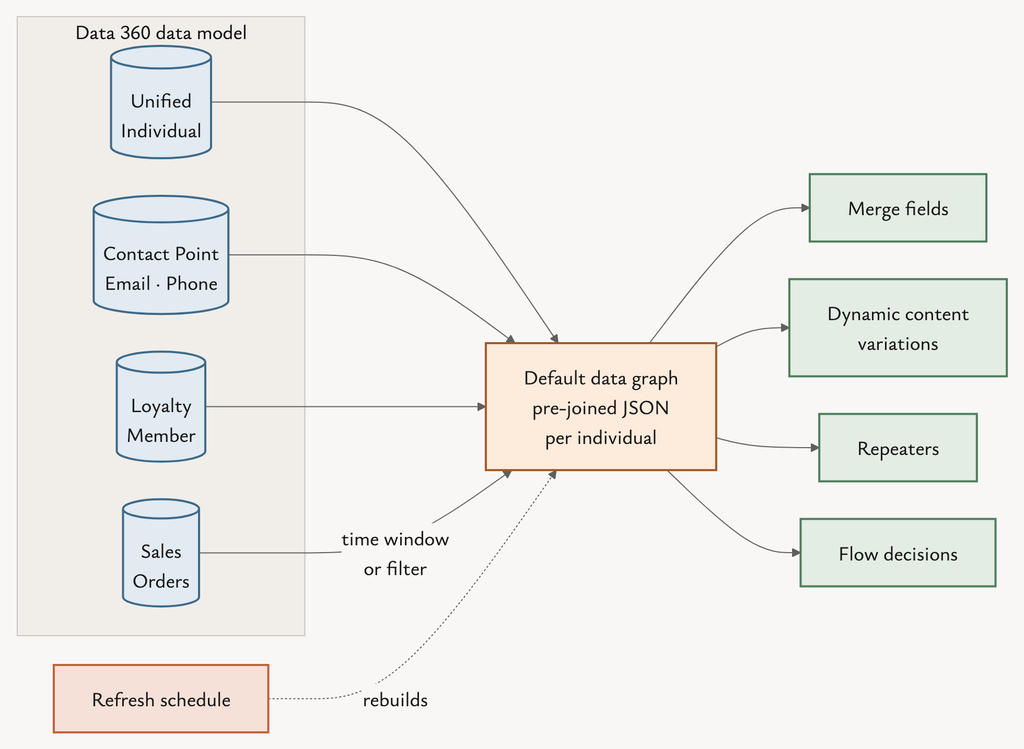
Marketing Cloud Next doesn’t personalise straight from your Data Cloud (Data 360) model. It reads a data graph.
Salesforce puts it simply in the rule-based personalisation unit on Trailhead: “A data graph brings together customer details and related fields into one model so Marketing Cloud Next knows which information is available for personalization.”
In practice, the default graph powers:
- Merge fields: “Thank you for your recent purchase of {Product}!”
- Dynamic content variations: targeting rules such as “show the Gold block if tier = Gold”.
- Repeaters: lists of related records, such as recent orders.
- Flow decisions: attributes used to branch a flow.
Primary object: Salesforce’s setup guide says a personalisation graph is based on Unified Individual. Required fields: the path Unified Individual → Unified Link Individual → Individual → Contact Point Email / Contact Point Phone, with Individual ID, Email Address and Telephone Number selected. Where it’s switched on: Setup → Customer Engagement → Configure Basic Personalization → Data Graph. After that, it becomes the default data source in the email builder’s Data Sources panel.
Example scenarios
- A retailer shows each customer’s loyalty tier and points balance in the header of every newsletter.
- A travel brand uses a repeater to list the customer’s next three bookings in a pre-trip email.
The challenge
“It’s just a view over the data model. We’ll tweak it as we go.”
Well… partly. You can edit a built graph. Salesforce’s own Manage a Data Graph unit adds a field and clicks Save and Build. But here’s what’s hidden behind that button:
- It only grows, in practice. You can add fields and objects to a built graph, but practitioner guides (and my own experience) agree you can’t take them back out. Removing a field means a new graph.
- Every edit is a rebuild. Salesforce says a refresh “can take the same amount of time as the initial creation, depending on the data volume”.
- Switching graphs isn’t instant. Salesforce’s setup guide says changing the data graph, or switching to another one, applies only to future content and campaigns.
- It locks your data model. Salesforce’s Delete a Data Graph page notes that you can’t delete objects, fields or relationships that are included in a data graph.
What breaks: an unused field you can’t drop from the graph, a DMO field you can’t delete, and a graph that takes longer to refresh every month. Who notices: the admin trying to clean up the data model, and the marketer whose same-day send went out with yesterday’s data. Cost: every row in the graph is processed on every full refresh (more on that below), so unused fields and objects aren’t free.
Possible solutions
Option A: one graph, patched as you go
Keep editing “Marketing” whenever someone asks for a field. Quickest today, most painful in month six.
Option B: one “everything” graph built up front
Add every field anyone might ever need, so you never have to edit it. You get no rebuilds and no surprises, but you pay to refresh data nobody uses, and you lock your whole data model.
Option C: one graph per use case
Build a loyalty graph, an ecommerce graph, a service graph and so on. Each one stays small, but personalisation uses one default graph, and the org limit is 25 standard graphs.
Option D: a lean, versioned graph built from a field inventory
Start from a documented list of fields that are actually in use. Build Marketing_v1. When the list changes, build Marketing_v2, test it, switch the default and retire v1 later.
| Option | Effort | Refresh cost | Can you remove fields? | Change risk | Fit |
|---|---|---|---|---|---|
| A: Patch one graph | Low | Grows over time | No | High (live graph rebuilds) | Proofs of concept |
| B: Everything graph | Medium | Highest | No need, until you do | Low at first | Rarely |
| C: Graph per use case | High | Low per graph | Per graph | Medium | Not for default personalisation |
| D: Lean, versioned graph | Medium, once | Lowest | Yes, via the next version | Low (tested before switching) | Most Marketing Cloud Next orgs |
The best solution: a lean, versioned data graph
Where: Data Cloud app → Data Graphs tab (for building), and Setup → Customer Engagement → Configure Basic Personalization (for switching).
- Build a field inventory, and use it to check which fields belong in the graph. Go through every place personalisation is used, and add each field to a simple table:
| Field | Source DMO and path | Used in | Profile or engagement | How fresh? |
|---|---|---|---|---|
| Loyalty Tier | Loyalty Member via Unified Individual | Newsletter header, flow decision | Profile | Daily |
| Last Order Product | Sales Order via Individual | Post-purchase repeater | Engagement | Same day |
- Look in: merge fields in templates and content blocks, dynamic content rules, repeaters, flow decision elements, and the campaign briefs signed off for the next quarter or two.
- Always include: the required fields from Salesforce’s setup guide (Individual ID, Email Address, Telephone Number).
- My rule: a field goes in if it’s used today or in a signed-off brief. “Might be useful one day” doesn’t count.
- Check the data before you build. Run a quick check in Data Explorer or Query Editor that each field is actually populated on the DMO. For one-to-many objects such as orders, decide the time window or filter you need, rather than pulling in every row.
- Build
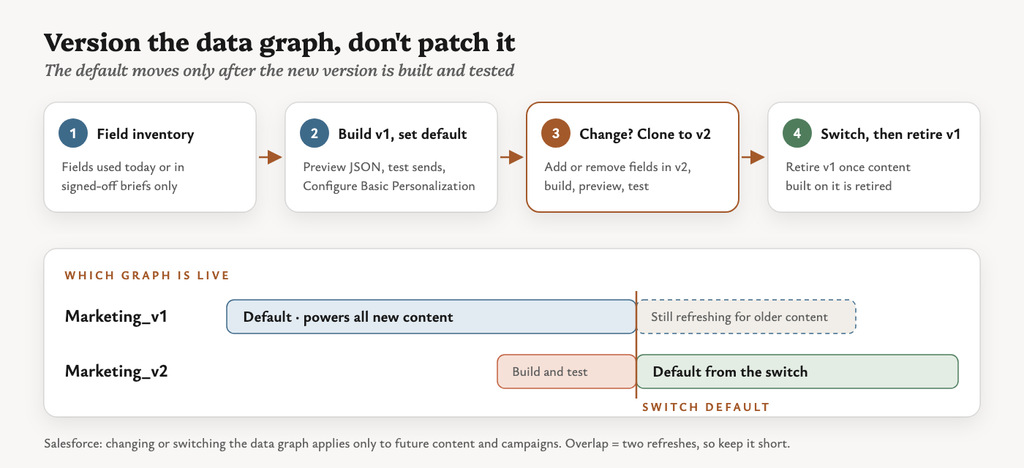
Marketing_v1. Use the inventory to build it on Unified Individual, in the data space your personalisation setup uses. Then use View Properties → Preview to check the JSON for a handful of known test individuals. - Choose the refresh schedule using the table below.
- Set it as the default in Configure Basic Personalization, then run test sends.
- Version, don’t patch. When the inventory changes, Clone v1 (or build from scratch if you’re removing fields), call it
Marketing_v2, build it, preview it and test it. Then switch the default. Keep v1 refreshing until every email and campaign built on it has been retired, because the switch only applies to future content.
Choosing a data graph refresh strategy
The Data Graphs Trailhead module says the default refresh interval is daily, and that a shorter interval can raise costs. The Data 360 limits page lists options down to every 30 minutes for standard graphs. Check the Schedule dialog in your own org, because these options change between releases.
| If the graph mostly holds… | Refresh | Why |
|---|---|---|
| Profile attributes (name, tier, preferences) | Daily (the default) | Matches how often they change |
| Mostly static reference data | Weekly | Cheapest, and good enough |
| Recent transactions for same-day sends | Shorter interval, only if a brief needs it | Fresher data, but more records processed |
| In-session web or app behaviour | A real-time data graph | Standard graphs aren’t designed for this |
My rule: time the refresh after your data streams and identity resolution finish. Otherwise the graph faithfully refreshes yesterday’s unified profiles.
Why this is the best solution
- Lowest refresh cost: only the fields in use get processed, so you’re not paying to refresh fields nobody uses.
- Changeable: versioning turns “we can’t remove fields” into “we remove them in v2”.
- Safe: the new graph is built, previewed and tested before the default moves, so no live email breaks mid-campaign.
- Clean data model: fewer fields in graphs means fewer DMO fields locked against deletion.
If a client asked me tomorrow, I’d agree the field inventory in the same workshop as the first email templates, and name the first graph Marketing_v1 on day one. Only for a short proof of concept would I accept Option A.
Considerations and limitations
- Credits / consumption: for profile objects, all rows are processed on each full refresh. For engagement objects, it’s all rows within the configured time window. A graph used in an activation has its processed records counted twice (Billing Considerations for Data Graphs).
- Incremental refresh: it processes every source record changed since the last full refresh, even ones that don’t match your filters, and it still needs a daily full refresh to stay in sync (same source).
- Limits: 25 standard and 25 real-time data graphs per org, and 25 objects per graph, counting the primary DMO, related DMOs and calculated insights (Data 360 Limits). More records mean slower refreshes and slower queries.
- Real-time graphs: they support only 1:1 and 1:N relationships joined on the parent’s primary key. Treat them as a separate design, not an upgrade switch.
- Data spaces: a graph lives in one data space. Pick the data space before you build, especially in multi-brand orgs.
- Versioning overlap: while v1 and v2 both refresh, you pay for both. Keep the overlap short and planned.
- Maintenance: give the graph an owner and a change log; review the inventory quarterly.
- Unverified detail: the “can’t remove fields” behaviour comes from practitioner guides and field experience, not a single Salesforce statement. Test it in a sandbox before you rely on it.
This solution isn’t right if… you’re running a short proof of concept, where patching one graph (Option A) is fine. It’s also not right if you need in-session, sub-second personalisation, which calls for a real-time data graph and a separate design.
Wrap-up
A data graph looks like a setup step. It’s actually a contract between your data model, your content and your credit bill.
Keep it lean, give it a version number, and refresh it on purpose. Patching it forever is how one graph ends up running your whole data model.
If your org spans several brands or regions, my post on Data 360 for global brands covers the data space decisions your graphs inherit. And if refresh costs are on your mind, Next Level #7 on segment credits applies the same “process less, on purpose” thinking to segments.
This is Next Level #5. Previous tip: MC Next migration rewards smart, lean SMBs · All tips: Next Level Tips. Got a hidden tip of your own? I’d love to hear it.